 Sorot
SorotYour podcast, cut to whoever's talking.
Sorot is a Premiere Pro plugin. Point it at your synced cameras and mics, and it builds a first edit with the cameras already switched: the speaker, a wide when it goes on, reactions if you want them. You review, it saves you the switching.
Premiere Pro 26 or newer · macOS or Windows (beta) · no card needed
How it works
Start your free trial
Your trial code
Your referral code
Keep this page open or save the code somewhere: it's not shown again.
- Download Sorot and install it (steps below).
- In Premiere: Window → UXP Plugins → Sorot.
- In the panel's Settings tab, paste your code and click Activate.
Do I need a card?
No. The trial is free and just ends; nothing is charged.
What happens when the trial ends?
Building stops and the panel shows how to keep going ($15/month, early-user price). Your edits stay exactly as they are.
Can I start another trial?
One free trial per computer. Need more time? Share your referral code (+14 days for each editor who builds their first edit) or message Samuel from the panel.
Install
On a Mac
- Click Download for Mac and open
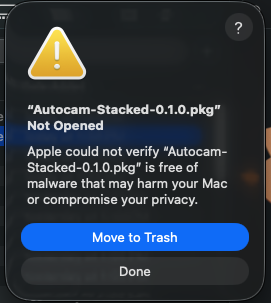
Sorot.pkg. - The first time, macOS blocks it because the installer isn't from the App Store. Click Done (not Move to Trash).
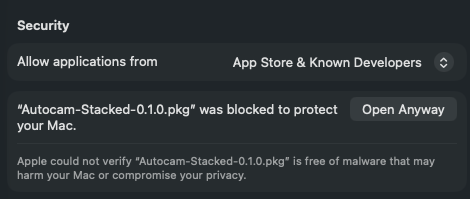
- Open System Settings → Privacy & Security, scroll down to Security and click Open Anyway next to Sorot (macOS asks for your password).
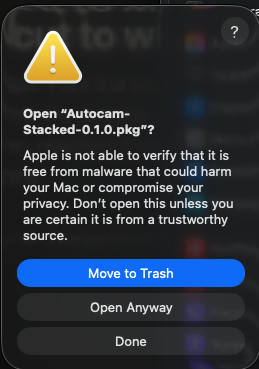
- Open the file again and click Open Anyway.
- Click through the installer. You don't need Creative Cloud or an internet connection for this.
- Quit and reopen Premiere Pro, then open Window → UXP Plugins → Sorot.
- In the panel's Settings tab, paste your trial code (or a friend's referral code) and click Activate.
On Windows (beta)
Premiere Pro 26 or newer on Windows 10 or 11. Windows support is new: if anything looks off, message Samuel from the panel's Settings tab.
Have the Creative Cloud app? The quickest way:
- Download Sorot for Creative Cloud (
.ccx) and double-click it. - Creative Cloud asks to install it: click OK / Install.
- Quit and reopen Premiere Pro, then open Window → UXP Plugins → Sorot.
No Creative Cloud app? This works offline too:
- Download Sorot for Windows (
.zip). Quit Premiere Pro. - Right-click the zip → Extract All… → Extract. (Running it from inside the zip doesn't work.)
- In the folder that opens, double-click Install Sorot. If Windows says "Windows protected your PC", click More info → Run anyway; if it asks "Do you want to run this file?", click Run.
- A black window says Sorot … is installed. Press any key to close it.
- Open Premiere Pro, then Window → UXP Plugins → Sorot.
Then, on either: in the panel's Settings tab, paste your trial code (or a friend's referral code) and click Activate.
Your first edit
1. The synced sequence
Sorot reads one sequence where everything is already in sync: every camera on its own video track (V1, V2, V3…) and every mic on its own audio track (A1, A2…). A track can hold several files (a recording in two takes is fine); Sorot follows the track, not the file. Zooms, reframes, LUTs and colour on those clips come along into the edit.
2. Mics → cameras
In the Edit tab, pick that sequence. For each mic, choose the video track that shows that person. Two people on one camera? Give both mics the same track. Any video track with no mic is treated as the wide shot.
3. Settings
- Cut to reactions: a quick cut to the listener on a "yeah" or a laugh. Turn it off for clients who don't like them.
- Wide shot after one person talks: on a long answer, a short wide after this many seconds (default 18).
- Shortest shot: no shot shorter than this (default 2 s), so it never flickers.
4. Build and review
Two ways to build, both from the same cuts:
- Build multicam edit: a real Premiere multicam, already cut. Each camera is your whole video track, with its takes, zooms and colour, so you change a shot the usual way: play it and press 1–4.
- Build stacked edit: one video track per camera, cut at every switch, with only the chosen camera switched on. To change a shot, select the greyed-out clip of the camera you want and press ⌘/Ctrl+Shift+E to switch it on, then the same on the one that was showing.
Sorot measures how loud each mic is, works out the cuts and puts the new sequence in the bin Sorot. Your synced sequence isn't touched. Changed it? Just build again.
After a build, rate the cuts with 👍 or 👎. It's the quickest way to make Sorot better.
Price
QRIS, bank transfer, GoPay, OVO, DANA or card, through Xendit. One payment, no automatic charges.
$15 / month, early-user price
Includes Sorot and, coming soon for subscribers, Review: your clients leave timed notes on your edits. When your trial ends, the panel lets you message Samuel to keep going.
Questions
Does my footage get uploaded?
No. The panel sends only loudness numbers (how loud each mic is, 20 times a second), counts like length and number of cameras, your settings and error messages with file names removed. Your audio, video and file names never leave your computer.
Does Sorot use AI?
No LLMs, no chatbots. Sorot decides the cuts with clear rules from how loud each mic is, which you can adjust. Nothing you record is read by an AI or used to train one.
Does it need the internet?
Installing doesn't. Building does: the cuts are worked out on Sorot's server.
How do referrals work?
Your referral code is in the panel's Settings (and shown when you start your trial). A friend who uses it gets a 21-day trial; you get 14 more days once they've built their first real edit (5 minutes or longer; up to 10 friends). Send them a link like samstool.com/sorot?ref=YOURCODE and it's filled in for them.
How do I update?
When there's a new version, the panel shows Update. Click it, click through the installer, then restart Premiere.
Windows?
Yes, in beta: Premiere Pro 26 or newer on Windows 10 or 11. See installing on Windows. It's new, so tell Samuel if anything is off.
Something went wrong
Use the feedback box in the panel's Settings tab. Errors are also reported automatically (without file names), so Samuel usually knows already.